---
title: General Ledger / Xero - Add New Account
description: VetLinkPro General Ledger / Xero - Add New Account
---
# VetLink PRO
Connecting Veterinary Professionals with Smarter Solutions
[Skip to content](https://help.vetlinkpro.com/vetlinkpro/general-ledger-/-xero-add-new-account#main-content)
English - Australia
Show submenu for translations

Open main navigation
Close main navigation
- English - Australia
Show submenu for translations
- Contact us
Contact us
How can we help you?
- There are no suggestions because the search field is empty.
1. [VetLink PRO](https://help.vetlinkpro.com/vetlinkpro)
2. [Support](https://help.vetlinkpro.com/vetlinkpro/support)
3. [Xero](https://help.vetlinkpro.com/vetlinkpro/support#xero)
# General Ledger / Xero - Add New Account
## v7,v6
Follow Steps below to add a new Account into the chart of accounts in VetlinkPRO.
If the clinic has Xero integration the account must have the same name and code as in Xero.
1. In VetlinkPro log in with ID and password.
2. Go to Jump To menu then General Ledger
3. Click F2: General Ledger button
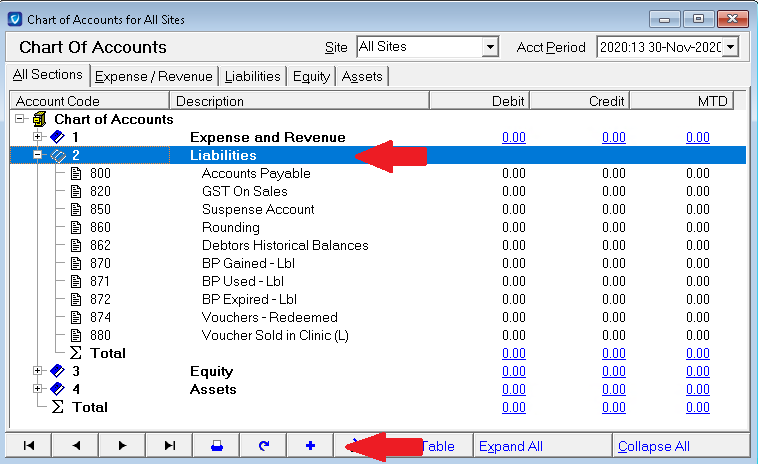
4. Expand Chart of Accounts and navigate to Heading to account under.
5. Single click Heading (so its highlighted) to that you wish to add account under.
6. Click + button at bottom of window.
7. Enter account setting
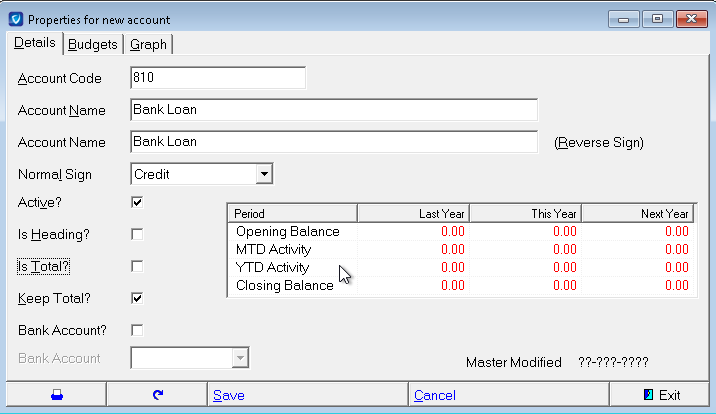
1. Input Code
2. Input Account Name and Account Name (Reverse sign).
3. Usually these are the same name. Could be different for something like a bank account. Eg. Normal Account Name = Bank Account, Reverse Sign = Bank Overdraft (if account goes into negative).
4. Tick Active and Keep Total.
5. Save and exit General Ledger.
8. Account can now be assigned to Product Record under the More tab.
- [Support](https://help.vetlinkpro.com/vetlinkpro/support#main-content)
- [Client Portal](https://help.vetlinkpro.com/vetlinkpro/support#client-portal)
- [Creditors](https://help.vetlinkpro.com/vetlinkpro/support#creditors)
- [Upgrade](https://help.vetlinkpro.com/vetlinkpro/support#upgrade)
- [Payments](https://help.vetlinkpro.com/vetlinkpro/support#payments)
- [Patient](https://help.vetlinkpro.com/vetlinkpro/support#patient)
- [Product](https://help.vetlinkpro.com/vetlinkpro/support#product)
- [Xero](https://help.vetlinkpro.com/vetlinkpro/support#xero)
- [Clinical History](https://help.vetlinkpro.com/vetlinkpro/support#clinical-history)
- [RDS Setup](https://help.vetlinkpro.com/vetlinkpro/support#rds-setup)
- [Client](https://help.vetlinkpro.com/vetlinkpro/support#client)
- [Diary](https://help.vetlinkpro.com/vetlinkpro/support#diary)
- [Mailers](https://help.vetlinkpro.com/vetlinkpro/support#mailers)
- [Exports](https://help.vetlinkpro.com/vetlinkpro/support#exports)
- [Stocktake](https://help.vetlinkpro.com/vetlinkpro/support#stocktake)
- [Reports](https://help.vetlinkpro.com/vetlinkpro/support#reports)
- [EOP / Statements](https://help.vetlinkpro.com/vetlinkpro/support#eop-statements)
- [Eforms / Digital Forms](https://help.vetlinkpro.com/vetlinkpro/support#eforms-digital-forms)
- [Other](https://help.vetlinkpro.com/vetlinkpro/support#other)
- [Printing](https://help.vetlinkpro.com/vetlinkpro/support#printing)
- [Email](https://help.vetlinkpro.com/vetlinkpro/support#email)
- [Server / Technical](https://help.vetlinkpro.com/vetlinkpro/support#server-technical)
- [Insurance](https://help.vetlinkpro.com/vetlinkpro/support#insurance)
- [Bill](https://help.vetlinkpro.com/vetlinkpro/support#bill)
- [Vac Reminders](https://help.vetlinkpro.com/vetlinkpro/support#vac-reminders)
- [Online Booking](https://help.vetlinkpro.com/vetlinkpro/support#online-booking)
- [Mobile Billing](https://help.vetlinkpro.com/vetlinkpro/support#mobile-billing)
- [Barcoding](https://help.vetlinkpro.com/vetlinkpro/support#barcoding)
- [SMS](https://help.vetlinkpro.com/vetlinkpro/support#sms)
- [General Ledger](https://help.vetlinkpro.com/vetlinkpro/support#general-ledger)
- [Staff](https://help.vetlinkpro.com/vetlinkpro/support#staff)
- [Telemedicine](https://help.vetlinkpro.com/vetlinkpro/support#telemedicine)
- [Manual](https://help.vetlinkpro.com/vetlinkpro/manual#main-content)
- [6.1](https://help.vetlinkpro.com/vetlinkpro/manual#6-1)
- [7.0](https://help.vetlinkpro.com/vetlinkpro/manual#7-0)
[](https://www.vetlinkpro.com)
[mailto:email@email.com](mailto:email@email.com)
Copyright © 2026, VetlinkPRO