---
title: Mobile Billing Getting Started
description: VetLinkPro Mobile Billing Getting Started
---
# VetLink PRO
Connecting Veterinary Professionals with Smarter Solutions
[Skip to content](https://help.vetlinkpro.com/vetlinkpro/mobile-billing-getting-started#main-content)
English - Australia
Show submenu for translations

Open main navigation
Close main navigation
- English - Australia
Show submenu for translations
- Contact us
Contact us
How can we help you?
- There are no suggestions because the search field is empty.
1. [VetLink PRO](https://help.vetlinkpro.com/vetlinkpro)
2. [Support](https://help.vetlinkpro.com/vetlinkpro/support)
3. [Mobile Billing](https://help.vetlinkpro.com/vetlinkpro/support#mobile-billing)
# Mobile Billing Getting Started
## v7,v6
Recommended Devices
- Cfl recommended iPhone’s or iPad’s to install the mobile billing app on.
- Most android devices are compatible, however due to the vast range of makes and models CFL cannot guarantee compatibility on all Android devices.
- The screen size must have a resolution larger than 1334x750. (The iPhone 5 resolution is too small)
- If you are intending to use the Mobile billing app on an Android device it is an **Android requirement that the device it must have a mobile network connection** due to it phone calling ability. Apple devices do not need a mobile network connection.
- If using a Bluetooth scanner with the Stocklink / Mobile Billing apps you must use an approved scanner which will need to be programmed to work with the apps. The approved scanners are the CINO FuzzyScan PF680BT or Zebra CS6070
VetlinkPRO Setup
Not all clients and products are available on the mobile billing app so you can exclude small animal clients or products that you wouldn't need to bill. You can live search to the VetlinkSQL database if needed however.
1. Clients: To set which clients are uploaded to devices open the client record in VetlinkPRO and go to the More tab and set To\_Mobile to Yes. This will also enable all of their animals as well. CFL can run a query to update all clients with large animals that have been billed in the last year.
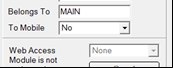
2. **Products:** To set which products are uploaded to devices open the client record in VetlinkPRO and go to the More tab and under Export To tick A: Mobile. CFL can run a query to set all products purchased by a large animal in last year. CFL can also do this by category if you send email the categories needed to [support@cfl.co.nz](mailto:support@cfl.co.nz). The Search and Replace function in VetlinkPRO can also set the Export To flag.

3. **Staff:** For Vets / Staff to log into the device you will also need to set the staff To\_Mobile field to Yes by opening the Staff record and going to the 8:Staff Tab.
4. **Diary:** To select which diary can be synced go to Options | Picklists | Diary | Diary Profile | diary name | To Mobile Yes/No …..
5. **Setup:** In Options | Setup | Staff | Access (scroll to bottom of Access options) Management can set whether devices can see prices, view appointments, make appointments for themselves or other staff.
Installing App on your Device
1. Once VetlinkSQL is configured you will need to download the app from the apple / android store.
2. The first time you run the app you will need to enter a User Key as supplied by CFL.
3. Enter a name for your device
4. Choose your branch, store and till to bill from.
5. Enter staff ID and password as per details stored in VetlinkSQL.
6. Synchronise ALL data and you should be ready to use the app.
Mobile Billing App User Customisation
1. Log into app and under the utilities button (bottom/middle of app), then Settings, then User Configuration are some settings to personalise the device.
2. The top Section (VetlinkSQL Settings) are set in VetlinkSQL access level setup by Management.
3. The bottom section (User Settings) can be personalised by the user for their device. These include if login is required for app, if you wish travel item prompted as first step in billing, how many clinical histories to download at once, and how many days to sync ahead in the diary plus a few others.
For more information
1. Watch the following demo for some of the features, [https://www.youtube.com/watch?v=9jFv\_nts9Mg](https://www.youtube.com/watch?v=9jFv_nts9Mg)
2. Read the chapter from the manual.
3. Contact the helpdesk
- [Support](https://help.vetlinkpro.com/vetlinkpro/support#main-content)
- [Client Portal](https://help.vetlinkpro.com/vetlinkpro/support#client-portal)
- [Creditors](https://help.vetlinkpro.com/vetlinkpro/support#creditors)
- [Upgrade](https://help.vetlinkpro.com/vetlinkpro/support#upgrade)
- [Payments](https://help.vetlinkpro.com/vetlinkpro/support#payments)
- [Patient](https://help.vetlinkpro.com/vetlinkpro/support#patient)
- [Product](https://help.vetlinkpro.com/vetlinkpro/support#product)
- [Xero](https://help.vetlinkpro.com/vetlinkpro/support#xero)
- [Clinical History](https://help.vetlinkpro.com/vetlinkpro/support#clinical-history)
- [RDS Setup](https://help.vetlinkpro.com/vetlinkpro/support#rds-setup)
- [Client](https://help.vetlinkpro.com/vetlinkpro/support#client)
- [Diary](https://help.vetlinkpro.com/vetlinkpro/support#diary)
- [Mailers](https://help.vetlinkpro.com/vetlinkpro/support#mailers)
- [Exports](https://help.vetlinkpro.com/vetlinkpro/support#exports)
- [Stocktake](https://help.vetlinkpro.com/vetlinkpro/support#stocktake)
- [Reports](https://help.vetlinkpro.com/vetlinkpro/support#reports)
- [EOP / Statements](https://help.vetlinkpro.com/vetlinkpro/support#eop-statements)
- [Eforms / Digital Forms](https://help.vetlinkpro.com/vetlinkpro/support#eforms-digital-forms)
- [Other](https://help.vetlinkpro.com/vetlinkpro/support#other)
- [Printing](https://help.vetlinkpro.com/vetlinkpro/support#printing)
- [Email](https://help.vetlinkpro.com/vetlinkpro/support#email)
- [Server / Technical](https://help.vetlinkpro.com/vetlinkpro/support#server-technical)
- [Insurance](https://help.vetlinkpro.com/vetlinkpro/support#insurance)
- [Bill](https://help.vetlinkpro.com/vetlinkpro/support#bill)
- [Vac Reminders](https://help.vetlinkpro.com/vetlinkpro/support#vac-reminders)
- [Online Booking](https://help.vetlinkpro.com/vetlinkpro/support#online-booking)
- [Mobile Billing](https://help.vetlinkpro.com/vetlinkpro/support#mobile-billing)
- [Barcoding](https://help.vetlinkpro.com/vetlinkpro/support#barcoding)
- [SMS](https://help.vetlinkpro.com/vetlinkpro/support#sms)
- [General Ledger](https://help.vetlinkpro.com/vetlinkpro/support#general-ledger)
- [Staff](https://help.vetlinkpro.com/vetlinkpro/support#staff)
- [Telemedicine](https://help.vetlinkpro.com/vetlinkpro/support#telemedicine)
- [Manual](https://help.vetlinkpro.com/vetlinkpro/manual#main-content)
- [6.1](https://help.vetlinkpro.com/vetlinkpro/manual#6-1)
- [7.0](https://help.vetlinkpro.com/vetlinkpro/manual#7-0)
[](https://www.vetlinkpro.com)
[mailto:email@email.com](mailto:email@email.com)
Copyright © 2026, VetlinkPRO