---
title: Products - v7 Search & Replace
description: VetLinkPro Products - v7 Search & Replace
---
# VetLink PRO
Connecting Veterinary Professionals with Smarter Solutions
[Skip to content](https://help.vetlinkpro.com/vetlinkpro/products-v7-search-replace#main-content)
English - Australia
Show submenu for translations

Open main navigation
Close main navigation
- English - Australia
Show submenu for translations
- Contact us
Contact us
How can we help you?
- There are no suggestions because the search field is empty.
1. [VetLink PRO](https://help.vetlinkpro.com/vetlinkpro)
2. [Support](https://help.vetlinkpro.com/vetlinkpro/support)
3. [Product](https://help.vetlinkpro.com/vetlinkpro/support#product)
# Products - v7 Search & Replace
## v7
**Search and Replace**
Search and replace is a function which can update different variables in goods and services in bulk.
**IMPORTANT:** **There is no rollback/undo on the function once you confirm changes. So be sure you are confident on how it works before applying any changes otherwise please contact the support desk for help.**
To use search and replace;
1. Go to any product record.
2. Click the *Search and Replace* button in the top banner
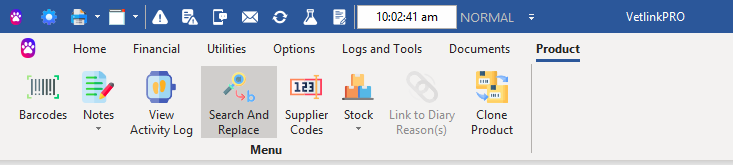
3. The *Search and Replace* window will open.
4. The first screen, **Search Criteria**, is where you can select the group of products to update. You can leave the selections set to all to do everything or select specific categories /classes to update.

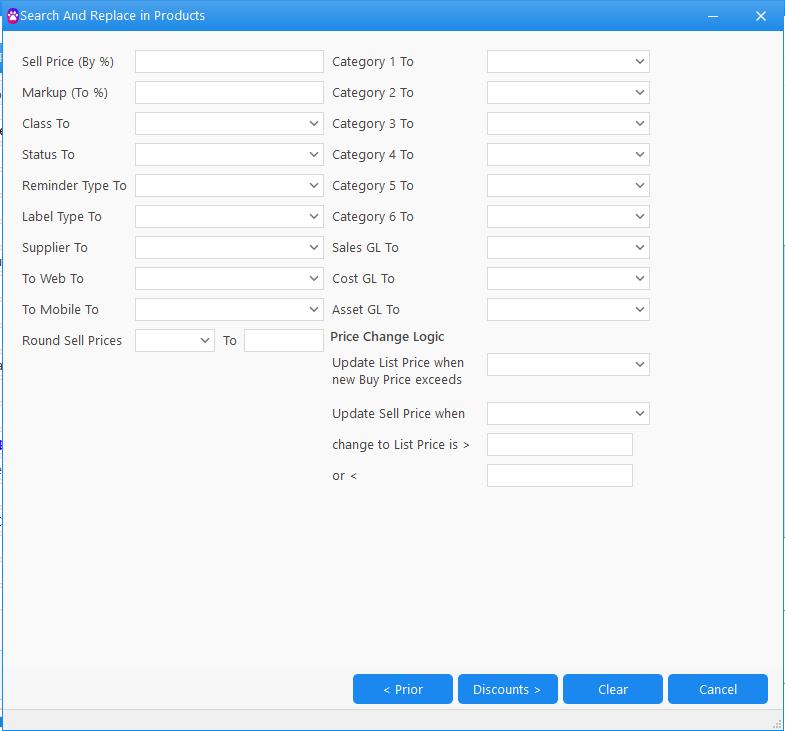
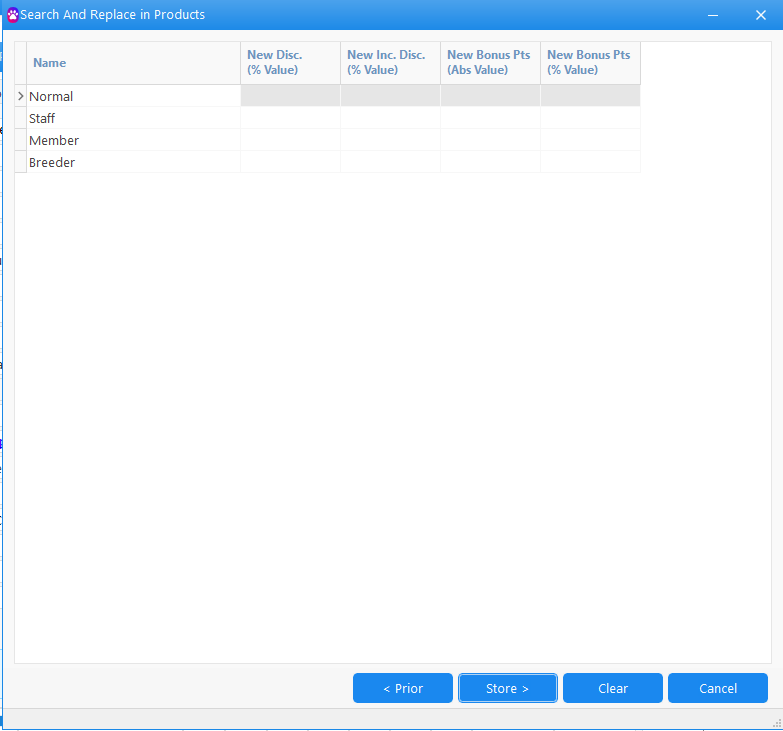
5. After selecting your search criteria, the next 4 screens (Product, Discounts, Store, and Stock) are where you set the changes you want to make
1. Navigate to the relevant screen for the changes you want to make using the navigation buttons at the bottom of the window.
2. Enter in your desired change e.g. to update sell prices by 2% set *Sell Price (By %)* to 2
3. Once a change is entered the navigation button at the bottom of the screen will change to read **Apply \>** - select this to continue
4. 
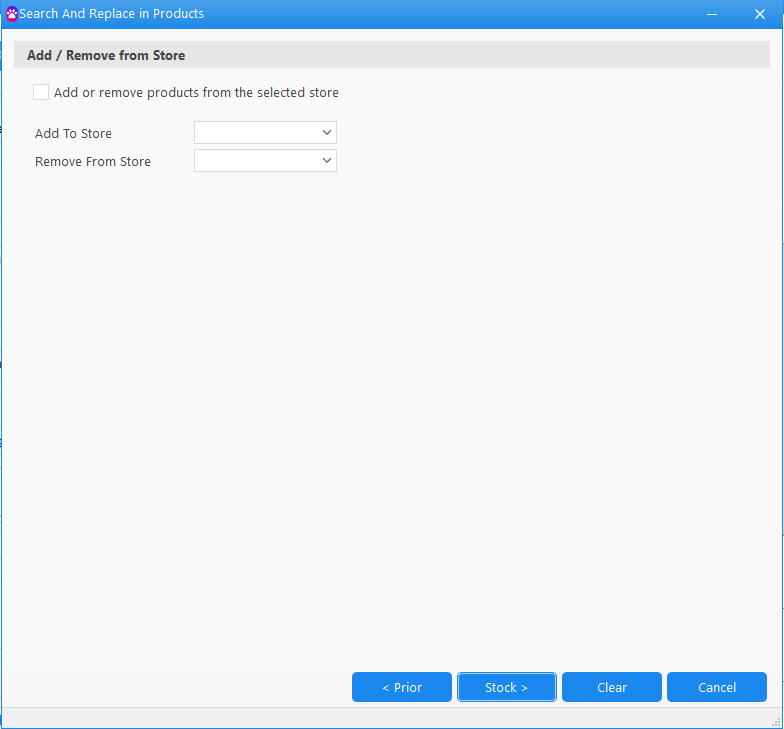
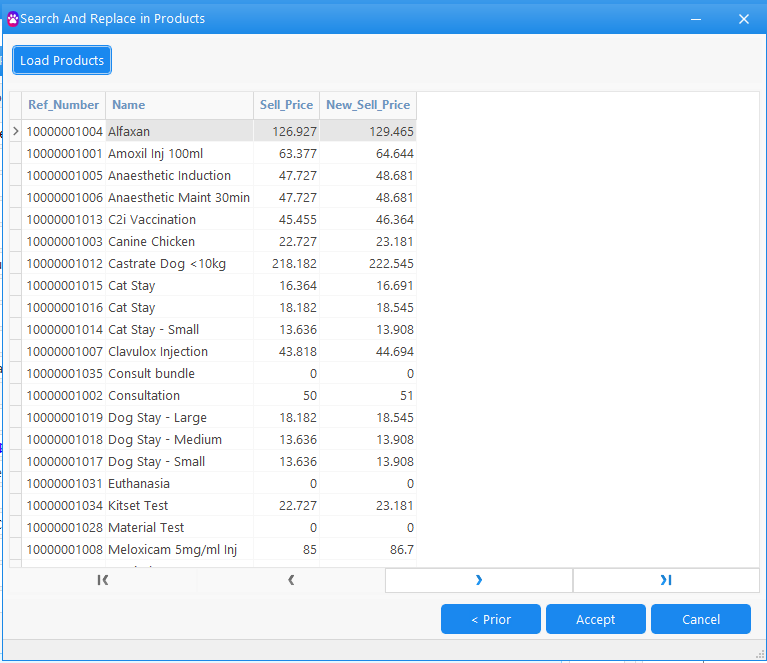
6. After select **Apply \>** click the **Load Product Update** button to generate a list of all the products, and the before/after values
1. When happy click **Apply**. Depending how many products you are updating it may take a while to run through.
- [Support](https://help.vetlinkpro.com/vetlinkpro/support#main-content)
- [Client Portal](https://help.vetlinkpro.com/vetlinkpro/support#client-portal)
- [Creditors](https://help.vetlinkpro.com/vetlinkpro/support#creditors)
- [Upgrade](https://help.vetlinkpro.com/vetlinkpro/support#upgrade)
- [Payments](https://help.vetlinkpro.com/vetlinkpro/support#payments)
- [Patient](https://help.vetlinkpro.com/vetlinkpro/support#patient)
- [Product](https://help.vetlinkpro.com/vetlinkpro/support#product)
- [Xero](https://help.vetlinkpro.com/vetlinkpro/support#xero)
- [Clinical History](https://help.vetlinkpro.com/vetlinkpro/support#clinical-history)
- [RDS Setup](https://help.vetlinkpro.com/vetlinkpro/support#rds-setup)
- [Client](https://help.vetlinkpro.com/vetlinkpro/support#client)
- [Diary](https://help.vetlinkpro.com/vetlinkpro/support#diary)
- [Mailers](https://help.vetlinkpro.com/vetlinkpro/support#mailers)
- [Exports](https://help.vetlinkpro.com/vetlinkpro/support#exports)
- [Stocktake](https://help.vetlinkpro.com/vetlinkpro/support#stocktake)
- [Reports](https://help.vetlinkpro.com/vetlinkpro/support#reports)
- [EOP / Statements](https://help.vetlinkpro.com/vetlinkpro/support#eop-statements)
- [Eforms / Digital Forms](https://help.vetlinkpro.com/vetlinkpro/support#eforms-digital-forms)
- [Other](https://help.vetlinkpro.com/vetlinkpro/support#other)
- [Printing](https://help.vetlinkpro.com/vetlinkpro/support#printing)
- [Email](https://help.vetlinkpro.com/vetlinkpro/support#email)
- [Server / Technical](https://help.vetlinkpro.com/vetlinkpro/support#server-technical)
- [Insurance](https://help.vetlinkpro.com/vetlinkpro/support#insurance)
- [Bill](https://help.vetlinkpro.com/vetlinkpro/support#bill)
- [Vac Reminders](https://help.vetlinkpro.com/vetlinkpro/support#vac-reminders)
- [Online Booking](https://help.vetlinkpro.com/vetlinkpro/support#online-booking)
- [Mobile Billing](https://help.vetlinkpro.com/vetlinkpro/support#mobile-billing)
- [Barcoding](https://help.vetlinkpro.com/vetlinkpro/support#barcoding)
- [SMS](https://help.vetlinkpro.com/vetlinkpro/support#sms)
- [General Ledger](https://help.vetlinkpro.com/vetlinkpro/support#general-ledger)
- [Staff](https://help.vetlinkpro.com/vetlinkpro/support#staff)
- [Telemedicine](https://help.vetlinkpro.com/vetlinkpro/support#telemedicine)
- [Manual](https://help.vetlinkpro.com/vetlinkpro/manual#main-content)
- [6.1](https://help.vetlinkpro.com/vetlinkpro/manual#6-1)
- [7.0](https://help.vetlinkpro.com/vetlinkpro/manual#7-0)
[](https://www.vetlinkpro.com)
[mailto:email@email.com](mailto:email@email.com)
Copyright © 2026, VetlinkPRO