---
title: SYMBOL CS4070 Scanner Configuration
description: VetLinkPro SYMBOL CS4070 ScannerConfiguration
---
# VetLink PRO
Connecting Veterinary Professionals with Smarter Solutions
[Skip to content](https://help.vetlinkpro.com/vetlinkpro/symbol-cs4070-scannerconfiguration#main-content)
English - Australia
Show submenu for translations

Open main navigation
Close main navigation
- English - Australia
Show submenu for translations
- Contact us
Contact us
How can we help you?
- There are no suggestions because the search field is empty.
1. [VetLink PRO](https://help.vetlinkpro.com/vetlinkpro)
2. [Support](https://help.vetlinkpro.com/vetlinkpro/support)
3. [Barcoding](https://help.vetlinkpro.com/vetlinkpro/support#barcoding)
# SYMBOL CS4070 Scanner Configuration
## v7,v6
#### Scanner Setup
1. Unpack the scanner and plug in the battery.
2. Hold in the + button to turn on the scanner. A green light will appear to show it’s awake.
3. Scan the following barcode by pressing the + button and pointing the red circle towards the centre of the square. This sets up the rules needed for the scanner to operate.

#### Pairing With Your Device
1. Next, to pair the Symbol CS4070 Bluetooth scanner to your Apple or Android device turn to page 8 of the manual included with your scanner.
1. Press and hold the Bluetooth button until the scanner beeps and the blue LED begins to flash. This indicates the scanner is discoverable by your other device.
2. On the Apple / Android, go to Bluetooth pairing and search for the CS4070 device.
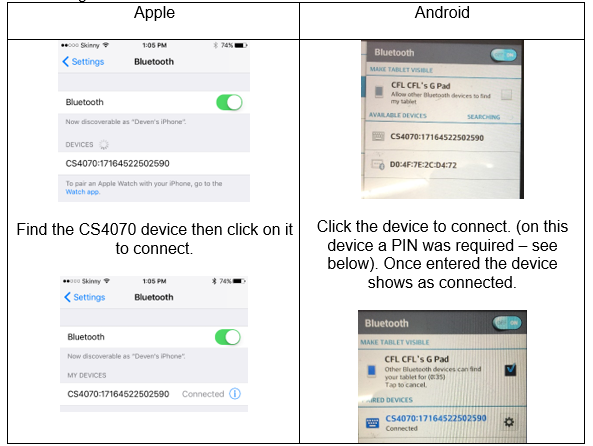
2. Find the CS4070 device then click on it to connect.
3. Click the device to connect. (on this device a PIN was required – see below). Once entered the device shows as connected.
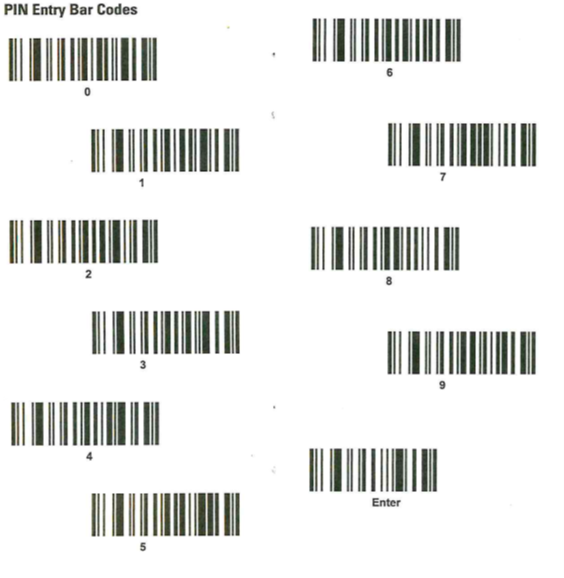
1. If requested to input a PIN number use the codes on pages 10 and 11 of the guide, or scan as below and then scan Enter.
#### Enable Scanner in Stocklink App
In the Stocklink app go to **Settings -\> Configuration -\> enable Using Scanner.**
- [Support](https://help.vetlinkpro.com/vetlinkpro/support#main-content)
- [Client Portal](https://help.vetlinkpro.com/vetlinkpro/support#client-portal)
- [Creditors](https://help.vetlinkpro.com/vetlinkpro/support#creditors)
- [Upgrade](https://help.vetlinkpro.com/vetlinkpro/support#upgrade)
- [Payments](https://help.vetlinkpro.com/vetlinkpro/support#payments)
- [Patient](https://help.vetlinkpro.com/vetlinkpro/support#patient)
- [Product](https://help.vetlinkpro.com/vetlinkpro/support#product)
- [Xero](https://help.vetlinkpro.com/vetlinkpro/support#xero)
- [Clinical History](https://help.vetlinkpro.com/vetlinkpro/support#clinical-history)
- [RDS Setup](https://help.vetlinkpro.com/vetlinkpro/support#rds-setup)
- [Client](https://help.vetlinkpro.com/vetlinkpro/support#client)
- [Diary](https://help.vetlinkpro.com/vetlinkpro/support#diary)
- [Mailers](https://help.vetlinkpro.com/vetlinkpro/support#mailers)
- [Exports](https://help.vetlinkpro.com/vetlinkpro/support#exports)
- [Stocktake](https://help.vetlinkpro.com/vetlinkpro/support#stocktake)
- [Reports](https://help.vetlinkpro.com/vetlinkpro/support#reports)
- [EOP / Statements](https://help.vetlinkpro.com/vetlinkpro/support#eop-statements)
- [Eforms / Digital Forms](https://help.vetlinkpro.com/vetlinkpro/support#eforms-digital-forms)
- [Other](https://help.vetlinkpro.com/vetlinkpro/support#other)
- [Printing](https://help.vetlinkpro.com/vetlinkpro/support#printing)
- [Email](https://help.vetlinkpro.com/vetlinkpro/support#email)
- [Server / Technical](https://help.vetlinkpro.com/vetlinkpro/support#server-technical)
- [Insurance](https://help.vetlinkpro.com/vetlinkpro/support#insurance)
- [Bill](https://help.vetlinkpro.com/vetlinkpro/support#bill)
- [Vac Reminders](https://help.vetlinkpro.com/vetlinkpro/support#vac-reminders)
- [Online Booking](https://help.vetlinkpro.com/vetlinkpro/support#online-booking)
- [Mobile Billing](https://help.vetlinkpro.com/vetlinkpro/support#mobile-billing)
- [Barcoding](https://help.vetlinkpro.com/vetlinkpro/support#barcoding)
- [SMS](https://help.vetlinkpro.com/vetlinkpro/support#sms)
- [General Ledger](https://help.vetlinkpro.com/vetlinkpro/support#general-ledger)
- [Staff](https://help.vetlinkpro.com/vetlinkpro/support#staff)
- [Telemedicine](https://help.vetlinkpro.com/vetlinkpro/support#telemedicine)
- [Manual](https://help.vetlinkpro.com/vetlinkpro/manual#main-content)
- [6.1](https://help.vetlinkpro.com/vetlinkpro/manual#6-1)
- [7.0](https://help.vetlinkpro.com/vetlinkpro/manual#7-0)
[](https://www.vetlinkpro.com)
[mailto:email@email.com](mailto:email@email.com)
Copyright © 2026, VetlinkPRO