---
title: VetlinkPay Email Setup
description: VetLinkPro VetlinkPay Email Setup
---
# VetLink PRO
Connecting Veterinary Professionals with Smarter Solutions
[Skip to content](https://help.vetlinkpro.com/vetlinkpro/vetlinkpay-email-setup#main-content)
English - Australia
Show submenu for translations

Open main navigation
Close main navigation
- English - Australia
Show submenu for translations
- Contact us
Contact us
How can we help you?
- There are no suggestions because the search field is empty.
1. [VetLink PRO](https://help.vetlinkpro.com/vetlinkpro)
2. [Support](https://help.vetlinkpro.com/vetlinkpro/support)
3. [Payments](https://help.vetlinkpro.com/vetlinkpro/support#payments)
# VetlinkPay Email Setup
## v7
When setting up VetlinkPay with payment links the payment link should be included in the body of the email, not just the PDF.
In the body of the email it should include the;
1. payment button with an embedded link (so we can train user what button looks like on pdf)
2. Text link with URL embedded (so we can direct them to click the link)
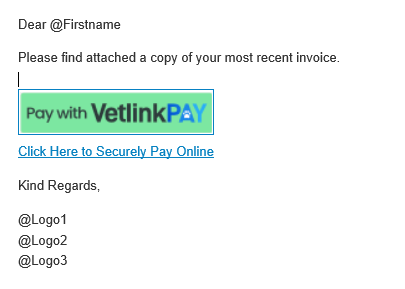
To create email;
1. Create a separate Tax Invoice email
1. Go to d:\\vl2\\data\\1\\bilmail
2. Make a copy of EMAIL\_BILL\_TPL.HTM
3. Rename it to EMAIL\_BILL\_Inv\_TPL.HTM
2. Edit the email template for Tax Invoices
1. In VetlinkPro go to Options -\> Picklists -\> Billing -\> Bill Email Templates
2. Open Email\_Bill\_Inv
3. Create payment link button
1. Insert payment button image (attached to this article) - note that this button will change from v7.2 so make sure you have the right one
2. Right click image and select image properties
3. Go to Link Tab
4. In URL add: @PaymentLink
5. click OK
4. Create Payment link URL
1. Type: Click here to Securely Pay Online
2. Highlight the text "Click here to Securely Pay Online"
3. Click the link button in editor 
4. In URL add: @PaymentLink and set Type = Other
3. Save and test email link work by finsing charge invoice and sending email to yourself. Make sure both links take you to the payment page.
- [Support](https://help.vetlinkpro.com/vetlinkpro/support#main-content)
- [Client Portal](https://help.vetlinkpro.com/vetlinkpro/support#client-portal)
- [Creditors](https://help.vetlinkpro.com/vetlinkpro/support#creditors)
- [Upgrade](https://help.vetlinkpro.com/vetlinkpro/support#upgrade)
- [Payments](https://help.vetlinkpro.com/vetlinkpro/support#payments)
- [Patient](https://help.vetlinkpro.com/vetlinkpro/support#patient)
- [Product](https://help.vetlinkpro.com/vetlinkpro/support#product)
- [Xero](https://help.vetlinkpro.com/vetlinkpro/support#xero)
- [Clinical History](https://help.vetlinkpro.com/vetlinkpro/support#clinical-history)
- [RDS Setup](https://help.vetlinkpro.com/vetlinkpro/support#rds-setup)
- [Client](https://help.vetlinkpro.com/vetlinkpro/support#client)
- [Diary](https://help.vetlinkpro.com/vetlinkpro/support#diary)
- [Mailers](https://help.vetlinkpro.com/vetlinkpro/support#mailers)
- [Exports](https://help.vetlinkpro.com/vetlinkpro/support#exports)
- [Stocktake](https://help.vetlinkpro.com/vetlinkpro/support#stocktake)
- [Reports](https://help.vetlinkpro.com/vetlinkpro/support#reports)
- [EOP / Statements](https://help.vetlinkpro.com/vetlinkpro/support#eop-statements)
- [Eforms / Digital Forms](https://help.vetlinkpro.com/vetlinkpro/support#eforms-digital-forms)
- [Other](https://help.vetlinkpro.com/vetlinkpro/support#other)
- [Printing](https://help.vetlinkpro.com/vetlinkpro/support#printing)
- [Email](https://help.vetlinkpro.com/vetlinkpro/support#email)
- [Server / Technical](https://help.vetlinkpro.com/vetlinkpro/support#server-technical)
- [Insurance](https://help.vetlinkpro.com/vetlinkpro/support#insurance)
- [Bill](https://help.vetlinkpro.com/vetlinkpro/support#bill)
- [Vac Reminders](https://help.vetlinkpro.com/vetlinkpro/support#vac-reminders)
- [Online Booking](https://help.vetlinkpro.com/vetlinkpro/support#online-booking)
- [Mobile Billing](https://help.vetlinkpro.com/vetlinkpro/support#mobile-billing)
- [Barcoding](https://help.vetlinkpro.com/vetlinkpro/support#barcoding)
- [SMS](https://help.vetlinkpro.com/vetlinkpro/support#sms)
- [General Ledger](https://help.vetlinkpro.com/vetlinkpro/support#general-ledger)
- [Staff](https://help.vetlinkpro.com/vetlinkpro/support#staff)
- [Telemedicine](https://help.vetlinkpro.com/vetlinkpro/support#telemedicine)
- [Manual](https://help.vetlinkpro.com/vetlinkpro/manual#main-content)
- [6.1](https://help.vetlinkpro.com/vetlinkpro/manual#6-1)
- [7.0](https://help.vetlinkpro.com/vetlinkpro/manual#7-0)
[](https://www.vetlinkpro.com)
[mailto:email@email.com](mailto:email@email.com)
Copyright © 2026, VetlinkPRO