
VetlinkPRO does not have a discount product. You do not create a product called Discount and add it as a line; a discount is entered on the bill itself, either against one item or across the whole bill. Automatic discounts for groups of clients or products are set up separately under Discounting Schemes.
Discounting one item
- On the open bill, click in the Disc (Incl.) column on the line you want to discount.
- Read the hint that appears beside the cell. It says whether the discount will be entered as a dollar value or as a percentage, for example Discount entered for this item is in dollar value, press '%' to change it to percentage.
- To switch, type the symbol you want in the Disc (Incl.) column:
- Type $ (Shift and 4) for a dollar amount.
- Type % (Shift and 5) for a percentage.
- Type the discount, for example 1 for $1 off or 10 for 10% off.
- Press Tab. The discount shows in red in the Disc (Incl.) column, and Price (Incl.) and the bill total update to the discounted amount.

Discounting the whole bill
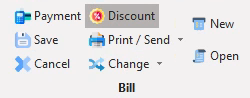
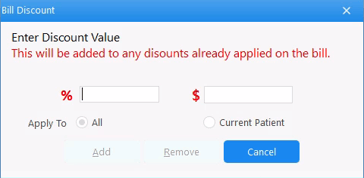
- On the open bill, click Discount in the top bar. The Bill Discount window opens.
- Enter the discount in either the % box or the $ box.
- A percentage discounts every item on the bill by that percentage.
- A dollar value is shared across the items in proportion to their value. On a $10 bill with a $9 item and a $1 item, a $1 discount takes $0.90 off the first and $0.10 off the second.
- If more than one patient is on the bill, under Apply To choose All or Current Patient.
- Click Add. Each line shows its share of the discount and the bill total updates.
Note: a discount entered on the bill is added on top of any automatic discount the client already receives from a discounting scheme; it does not replace it. To give a group of clients or a set of products a discount automatically every time, set up a discounting scheme instead - see Chapter 8 - Discounting Schemes.